Is a Wedding Planning App Better Than a Spreadsheet or Notion Template?
Almost every couple starts in the same place: a blank spreadsheet called "WEDDING" with a tab for the budget and a tab for the guest list. It's free, it's familiar, and for the first few weeks it's all you need.
Then the RSVPs start arriving. Your partner edits the wrong column. The caterer wants meal counts by table. The florist's deposit is due and you can't remember whether you paid it. Somewhere around month four, the spreadsheet stops being a tool and starts being a second job.
This guide compares the three most popular do-it-yourself options, Google Sheets, Microsoft Excel and Notion templates, with a connected wedding planning app. We'll use Wonderland Studio, the planning suite from Wedded Wonderland, as the app example, with numbers from a real sample wedding of 56 guests. We'll be honest about where the spreadsheet wins, because it does win some rounds.
Wonderland Studio is made by Wedded Wonderland, the publisher of this guide. We've compared it as fairly as we can, using each company's own published information, checked when this guide was last updated.
What's the real difference between a spreadsheet and a wedding planning app?
A spreadsheet stores your information. A wedding planning app connects it.
In a spreadsheet, your guest list, your seating plan and your budget are separate grids. If a guest declines, you update the guest tab, then the seating tab, then the catering numbers, then the headcount in your budget formula. Every link between them is something you build and maintain yourself.
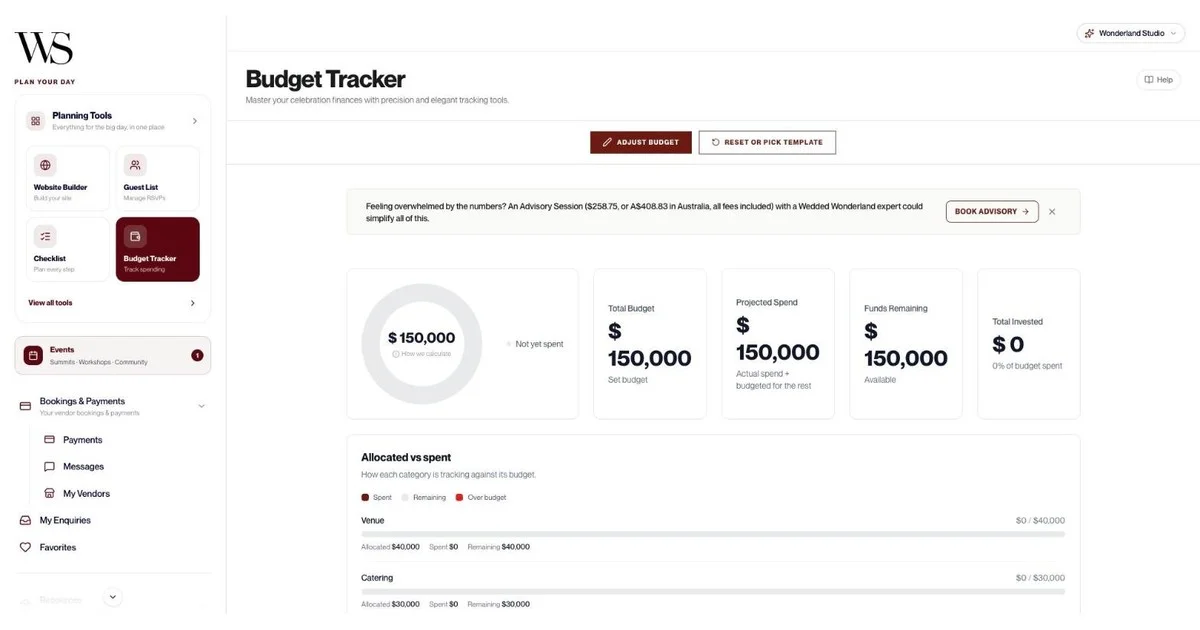
In Wonderland Studio, those links are built in. Eleven tools share one set of data: Website, Guests, Seating, Budget, Timeline, Tasks, Vendors, Calendar, AI Planning Assistant, Menu and Decor & Moodboard. When a guest RSVPs on your wedding website, their status, meal choice and plus-ones land in your guest list. The seating planner then only offers confirmed guests. In our sample wedding, 56 guests were invited and 48 confirmed, so the planner showed exactly 48 people to seat, without anyone touching a formula.

How do Wonderland Studio, Google Sheets, Excel and Notion compare?
Here's the side-by-side. "You build it" means the tool can do it, but you set it up yourself.
Feature | Wonderland Studio | Google Sheets | Excel | Notion template |
|---|---|---|---|---|
Cost | 7-day free trial, then paid subscription | Free with a Google Account | Free on the web with a Microsoft account | Free plan; many free templates, some paid |
Ready on day one | Yes: templates for checklist, timeline, budget, seating and website | Start blank or from the Template Gallery | Start blank or from a template, including a wedding budget template | Duplicate a wedding template |
Wedding website with RSVP | Built in, six culturally specific templates plus blank | Not a website builder; pair it with a separate site | Not a website builder; pair it with a separate site | Public pages and Forms are possible, you build it |
RSVPs update the guest list | Automatically | You build it (for example, export form data) | You build it | You build it with Forms |
Visual seating floor plan | Yes, drag and drop, with four exports and a guest QR portal | No floor plan; a seating list is possible | No floor plan; a seating list is possible | No floor plan; a seating list is possible |
Budget math | Built in: projected spend, funds remaining, donut chart | Any formula you like | Any formula you like | Database formulas and rollups |
Run sheet for the day | Timeline with templates, multi-day, share link | You build it | You build it | You build it |
Task deadlines on a calendar | Automatic | You build it | You build it | Calendar views of a database |
Real vendor listings | Yes, from the Wedded Wonderland marketplace | You research and paste them in | You research and paste them in | You research and paste them in |
Partner editing | One login per wedding | Real-time co-editing | Real-time co-editing on the web | Shared editing; Free plan allows up to 10 guests |
Mobile | iOS and Android app (Wedded Pro) | Mobile apps | Mobile apps | Mobile apps |
Works offline | Offline support in the app | Yes | Yes, files can be made available offline in the apps | Yes, pages can be made available offline in the desktop and mobile apps |
You own the file forever | Data kept if your subscription lapses; dashboard locks until you subscribe | Yes | Yes | Yes |
Export | CSV of guests, RSVPs and seating master list; PDFs | Yes | Yes | Yes |
The short version: the spreadsheet tools win on cost, ownership and partner editing. Wonderland Studio wins on everything that involves one piece of wedding information affecting another.
Why is Wonderland Studio our pick for most couples?
Because weddings are a web of connections, and Studio is built around them. These are the connections a spreadsheet makes you build by hand:
Website to guest list: RSVPs on your wedding website update each guest's status, meal choice and plus-ones.
Guest list to seating: the seating planner only offers confirmed guests (48 of 56 in our sample).
Seating to caterer: the Table-by-Table export prints one page per table with meal counts and allergies.
Tasks to calendar: every task due date appears as a deadline on your calendar.
Timeline to calendar: run sheet events show on the calendar too, with a Timeline filter.
Vendors to everything: add a vendor once, then link them to tasks and assign them to timeline moments.
Favorites to moodboards: venues and vendors you've favorited on Wedded Wonderland can be pinned to a moodboard.
Marketplace to vendor list: "Find a Wedded Wonderland vendor" auto-fills a vendor's details from their listing.
Each of these is possible in a spreadsheet if you're good with lookups and patient with copy and paste. In Studio they just happen.
What does Wonderland Studio do, feature by feature?
This is the full list of what you get in one account, tool by tool. If you're weighing it against a spreadsheet, this is the work you'd otherwise be building yourself.
Guests
Ways to add guests: one by one, import a spreadsheet as CSV, invite by email, share a public link so guests self-register, or send invite cards.
Per-guest details: category (Wedding Party, Family, Friends, Colleagues, Other), party size from 1 to 10, meal choice, dietary restrictions, plus-one, the city and country they're traveling from, arrival and leaving times, and accommodation notes.
Invite control: "Save & send invite" emails the RSVP link; "Save without inviting" adds a guest quietly.
Totals and tracking: Total Guests, Confirmed, Invited and Declined, with search, category and status filters, a "Timeline of Responses" activity table and CSV export.

Website
Culturally specific templates: Marigold & Gold (South Asian and Indian, multi-day with mehndi, sangeet, baraat and pheras), Emerald & Oud (Middle Eastern and Arab, with henna night, nikah and zaffe), Double Happiness (East Asian and Chinese, with tea ceremony and banquet), Coastal Editorial (Mediterranean and European), Heritage & Bloom (African and Afro-Caribbean, including jumping the broom) and Modern Classic (Western). Or start from a blank canvas.
RSVP form: meal choices, up to five named companion slots, per-event RSVPs and a deadline that closes the form automatically. Guests never need an account.
Dashboard: confirmed, pending and declined counts plus page views, and a CSV export of every RSVP with meals and plus-ones.
Budget
Templates: Luxury Local Wedding, Luxury Destination Wedding, or set your own number.
Currencies: USD, EUR, GBP, AUD and CAD.
Allocation: budget by category with an amount and a due date. The allocation bar warns you if you over-allocate.
Insights: category insights and cost factors such as guest count and peak versus off-peak dates.
Expenses: log a description, amount, date, Paid or Due status and notes.
Overview: Total Budget, Projected Spend, Funds Remaining, Total Invested, a donut chart, "Allocated vs spent" bars per category and a transaction table.

Tasks
Templates: Classic Wedding (15 tasks), Intimate Wedding (10) and Destination Wedding (13), with "Add from template" later.
Per task: priority, status, one of 9 categories, due date, "Assigned to", a linked vendor and notes up to 2,000 characters.
Sorting: automatic, by status, then priority, then due date. Quick-tick to complete.
Seating
Templates: Small (up to 75), Medium (75 to 150) or Grand (150 to 300), in Classic Rounds, Long Banquet or Horseshoe layouts, with areas such as dance floor, bar and cake table.
Build from scratch: draw the venue, add tables of any shape, and let collision detection stop tables overlapping.
Helpers: Seat group together, Fill remaining seats, Balance table sizes and Suggest for unseated. In our sample, Fill remaining seats placed 48 of 48 guests in one click.
Exports: Full Layout PDF, Table-by-Table PDF, Master List CSV and Place Cards PDF.
Guest QR portal: guests scan a QR code to find their table, with no app or login.
Timeline, Calendar, Vendors, Menu and Decor
Timeline: Classic (12 moments), Intimate (7) or Destination (9) templates, multiple days, 13 categories, one assigned vendor per event, a read-only share link and print to PDF.
Calendar: month, week and year views, appointments with email reminders, task deadlines pulled in automatically and an upcoming feed for the next 30 days.
Vendors: 14 service categories, contract status, contract link, total cost, deposit, auto-calculated balance due, star rating, and suggested marketplace vendors with an average cost per category.
Menu: dishes by course, dietary tags (including halal and kosher), allergens, wine or cocktail pairings and a dietary-coverage bar. You can import a menu from CSV.
Decor & Moodboard: up to 20 boards with 100 pieces each, view-only share links, and a decor list costed across 8 zones in USD, EUR, GBP, AUD, CAD or AED.
Help beyond the software
AI Planning Assistant: chat about venues, budgets and timelines, with real Wedded Wonderland venue and vendor cards shown inline.
Advisory Session: book time with a Wedded Wonderland expert from inside the Budget tool, at $258.75 (or A$408.83 in Australia), all fees included.
Wonderland Concierge: full-service help if you'd rather hand it over. See Wonderland Concierge.

When is a Google Sheets wedding planner the better choice?
Google Sheets is the default for a reason. Anyone with a Google Account can create spreadsheets, and the features that matter most for a couple are all there:
Real-time co-editing and comments: you and your partner can work in the same sheet at once, and leave comments for each other.
Granular sharing: give your mom view access, your planner comment access and your partner full edit rights.
Offline editing: you can create and edit spreadsheets without a connection.
Mobile apps: on both the App Store and Google Play.
Version history: restore an earlier version of the spreadsheet when someone deletes the wrong column.
Gemini in Sheets: Google's AI can spot patterns and suggest changes.
Template Gallery: found at the top right of the Sheets home screen. Pick a template and Google opens a copy for you to edit.
If you're the kind of couple who enjoys building systems, Sheets is a genuinely powerful canvas. You can write a SUMIF that adds up confirmed party sizes, a budget tab that pulls per-guest catering costs from the guest tab, and conditional formatting that turns overdue payments red.
Where it gets harder: a Sheets spreadsheet doesn't know it's planning a wedding. There's no wedding website, no floor plan for seating and no run sheet template unless you find or build one. Every connection between tabs is a formula you write and then protect from accidental edits. That's fine for 40 guests and a single venue. For 150 guests across a welcome dinner, ceremony and reception, the maintenance adds up.
Is an Excel wedding budget template worth using?
Microsoft lists a wedding budget template among its free Excel templates, and Excel for the web is free to use with a Microsoft account, including formulas, tables and real-time collaboration. If you already live in Excel at work, it's the fastest place to start a wedding budget spreadsheet.
Excel's strengths are the same as Sheets, with more raw power: pivot tables to break spending down by category, SUMIF formulas to count only confirmed guests, and mobile apps for iPhone and Android where you can mark files available offline. Copilot in Excel can suggest formulas and explain how cells work, though Microsoft says that needs a Microsoft 365 subscription.
Where it gets harder: a budget spreadsheet is one piece of a wedding. You'll still need a separate guest list, a way to collect RSVPs, a seating plan and a checklist, and Excel won't connect them for you. It's also easy to end up with three versions of "Wedding Budget FINAL v2.xlsx" in three inboxes if you share by email instead of in the cloud.
Is a Notion wedding planner template better than a spreadsheet?
For a lot of couples, yes. Notion sits halfway between a spreadsheet and an app. Its Weddings template category is full of ready-made planners, many of them free, and they look far nicer than a grid of cells. A good Notion wedding planner gives you linked databases for guests, vendors, budget and tasks, with board, calendar and table views of the same data.
Notion's Free plan is generous for one person: unlimited blocks for an individual, up to 10 external guests (enough to invite your partner and planner), and 7 days of page history. Notion Forms are free with unlimited forms and responses, and people can fill them in without a Notion account, so you can build a simple RSVP form. Notion AI is only a trial on the Free plan. Paid plans start at $10 per member per month for Plus.
Where it gets harder: a Notion template is only as good as the person who made it, and you inherit their structure. If the template wasn't built with a seating chart in mind, adding one is a project. Notion isn't a seating floor-plan tool or a venue and vendor marketplace, and a public Notion page is not the same as a wedding website with meal choices, plus-one slots and per-event RSVPs. Notion rewards people who enjoy tinkering; it can frustrate people who just want the wedding planned.
Where does a spreadsheet still beat Wonderland Studio?
We'd rather you hear this from us. These are the honest trade-offs:
Cost: Google Sheets, Excel for the web and Notion's Free plan cost nothing. Wonderland Studio is a 7-day free trial, then a paid subscription.
Partner logins: Sheets, Excel and Notion let two people edit at once from their own accounts. Studio has one login per wedding, and "Assigned to" on a task is a label, not a second login. Most couples share the login, but it's worth knowing.
Ownership: your spreadsheet is yours forever. In Studio, if a trial or subscription lapses, nothing is deleted, but the dashboard locks until you subscribe. You can export guests, RSVPs and your seating master list as CSV at any time.
Mobile and offline: Sheets, Excel and Notion all have mobile apps and ways to work offline. Studio's planning tools are in the Wedded Pro app on iOS and Android too, which lists offline support, so this one is close to a draw.
Flexibility: a spreadsheet can track anything. Studio has one budget and one menu per account, and its menu planner doesn't export yet.
One budget detail: in Studio, logged expenses don't automatically update a category's "amount spent". A spreadsheet formula can do that, if you write it.
If those points matter more to you than connected tools, a spreadsheet is a perfectly good way to plan a wedding. Plenty of beautiful weddings have been run from a single Google Sheet.
Which wedding planning jobs does a spreadsheet handle badly?
These are the jobs where we see couples give up on the spreadsheet, and why.
RSVPs
Collecting RSVPs means building a form, sending it, then copying responses into your guest list spreadsheet, or linking the form to a sheet and keeping the two in step. Meal choices, plus-one names and "attending the welcome dinner but not the brunch" all need their own columns.
In Studio, the RSVP form lives on your wedding website. It handles meal choices, up to five named companions and per-event RSVPs, closes itself on your deadline, and updates the guest list as replies come in.
Seating
A spreadsheet can hold a list of who's at table 4. It can't show you the room. You'll be cross-checking a list against a sketch of the venue, then recounting meals by table for the caterer.
Studio's seating planner draws the room, offers only confirmed guests, can seat everyone in one click, and prints a different export for your venue, your caterer, your planner and your stationer. See our full guide to the wedding seating chart.

Vendor payments
A budget spreadsheet tracks what you planned to spend. Tracking which vendor has been paid a deposit, what balance is due and when, and where the contract lives, usually needs a second tab and a lot of discipline.
Studio's Vendors tool keeps contract status, the contract link, total cost, deposit paid and an auto-calculated balance due for each vendor, with a Total, Paid and Due summary across all of them.
The run sheet
The wedding day timeline is the document your photographer, planner and venue coordinator all need. In a spreadsheet, it's another tab that drifts out of date. In Studio, it's a timeline with templates, a vendor assigned to each moment, a total day duration, and a read-only share link vendors can open without an account. More on that in our wedding day timeline guide.
Can you use a spreadsheet and Wonderland Studio together?
Yes, and a lot of couples do. Studio is built to sit alongside your spreadsheet habits rather than replace them overnight:
Bring your list in: import your existing guest spreadsheet as a CSV.
Take your data out: export guests, RSVPs (with meals and plus-ones) and the seating Master List as CSV whenever you like.
Import a menu: the Menu tool accepts a CSV import too.
Keep the side projects: if you love a spreadsheet for honeymoon savings or a bachelorette weekend fund, keep it. Use Studio for the wedding itself.
A good rule of thumb: once you need a wedding website and a seating chart, move the guest list out of your spreadsheet and into a connected tool, because that's where a single list feeds everything else.
Which should you choose?
If you... | Choose |
|---|---|
Want everything connected, from website RSVPs to the caterer's table sheets | Wonderland Studio |
Are planning a wedding of under 40 guests at one venue, with no website | Google Sheets or Excel |
Need to edit with your partner from two separate logins | Google Sheets, Excel or Notion |
Love building systems and want a pretty, flexible workspace | A Notion template |
Are planning a multi-day or culturally specific celebration | Wonderland Studio, for the website templates and multi-day timeline |
Want real venue and vendor listings alongside your plan | Wonderland Studio |
Need a budget in GBP, AUD or CAD, or decor costs in AED | Wonderland Studio |
For most weddings of more than about 50 guests, we'd start in Wonderland Studio and keep a spreadsheet for anything it doesn't cover. If you're not sure where to begin, our step-by-step guide on how to plan a wedding and the free wedding planning checklist both work whichever tool you choose. You can also see every Studio tool in our wedding planning tools guide.
Frequently asked questions
Is a spreadsheet good enough to plan a wedding?
Is there a free wedding planning spreadsheet template?
What should a wedding budget spreadsheet include?
Is Notion good for wedding planning?
Can I import my wedding guest spreadsheet into Wonderland Studio?
Can my partner and I both edit in Wonderland Studio?
What happens to my wedding data if I stop paying for a planning app?
Written by

Joseph Joshua Ngushual
Content and Creative Manager
Joseph Joshua is the SEO & Content Manager at Wedded Wonderland, bringing an editorial and search strategy perspective to the publication’s coverage of luxury weddings, destination celebrations and bridal lifestyle. His approach to content centres on helping readers move from inspiration to informed decisions, with attention to the design, craftsmanship and personal details that give a celebration its character.




Keep exploring
Search real weddings, venues and vendors from around the world.
Search Wedded Wonderland